

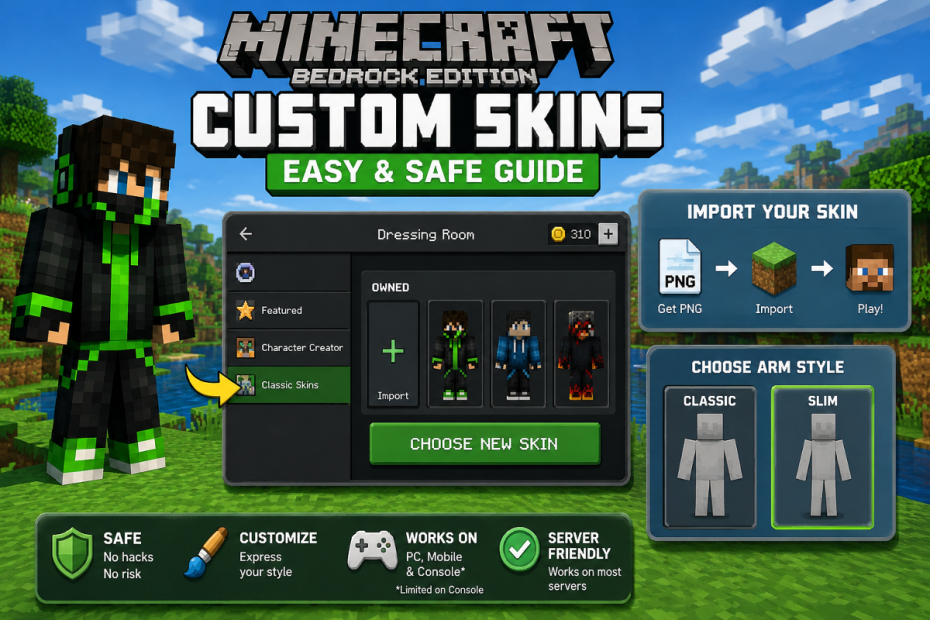
Maybe you’re tired of looking like Steve. Maybe you found a cool skin online. Either way, getting a custom skin into Minecraft Bedrock is easier than most people think. Something that feels like you. This guide shows how to get custom skins on Minecraft Bedrock with simple steps. No fluff. No shady tools. Just what works on PC, mobile, and what’s possible on console. I’ll also clear up the messy talk about 4d skins minecraft bedrock so you know what’s real.
What Counts As “Custom” In Bedrock
A regular Bedrock character skin isn’t some huge texture file. A regular skin file is basically a PNG picture. It wraps the player model. Two arm styles exist: classic (wide) and slim (narrow). Colors, clothes, hair — all painted on that PNG. That’s a custom skin.
There is also the in‑game Character Creator. It adds 3D parts like hats, backpacks, capes, wings. Some are free. Some cost minecoins. People often call these “4D skins.” They are allowed pieces inside the Creator, not magic files from the web.
Join the PERA (Personal Entertainment Research Assistant) waitlist.
The World's Most Indispensable Movie App
The RunPee app tells you the best times to
run & pee during a movie
so you don't miss the best scenes.


Download the RunPee app.
100% free (donation supported)


How To Get Custom Skins On Minecraft Bedrock (PC + Mobile)
Here is the clean path that works almost every time.
- Grab or make a PNG skin. Use a trusted site or a simple editor. Make sure it’s the standard template.
- Save it where you can find it. Name it clearly, like “green_knight_slim.png.”
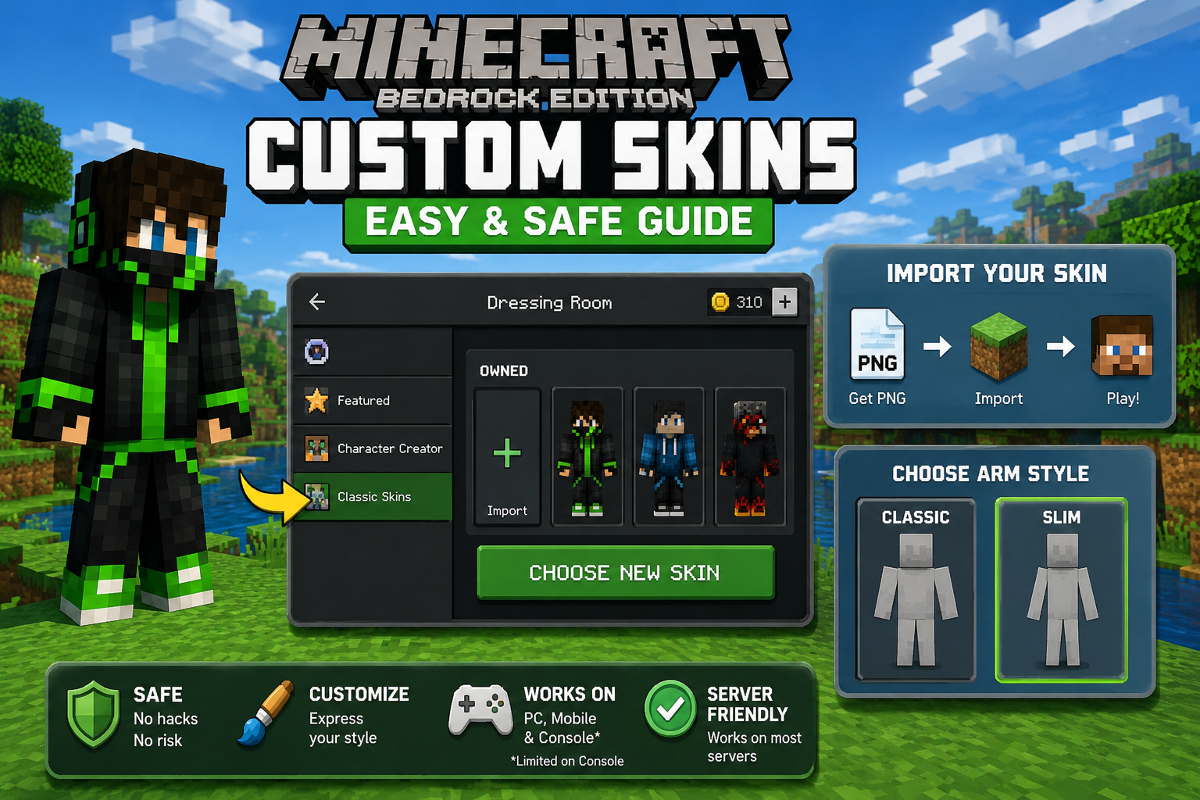
- Open Minecraft Bedrock. Go to Dressing Room.
- Pick Classic Skins. Choose Owned → Import → Choose New Skin.
- Select your PNG. Pick classic or slim arms to match the file.
- Confirm and load a world. Switch to third‑person to check.
On iOS or Android, if the file picker is annoying, share the PNG directly to Minecraft from the browser’s download list. Same result, fewer taps.
What people are saying
about the RunPee app.

This is a great app. I wish more people would support it
This app provides info about movies, reviews, ratings from people who have seen it before and after viewing. It has links to info about the movies. It let's you know when there will be a lull in the action and how long it will last. If you want to know what happens during that time, you can check the brief synopsis (you have to click a link, so no accidental spoilers). It has a timer you can set (silent) to alert you to a break. It also tells you whether there is anything extra during or after the credits. It's really a wonderful app. I've subscribed for a couple of years to support the developers, but I noticed some of the links to provide feedback didn't seem to work today. They also made it free, with voluntary donations to see the pee-times. If you haven't tried it, I encourage you to do so, and subscribe if you like it. I really hope the app is supported so it can continue to be maintained!
Developers note: RunPee doesn't make much money but it supports itself nicely. Donations are appreciated, but not required. We'll add as many movies to the database as we can until there are no more movie theaters.
View all reviews
Apple App Store | Google Play Store
Download RunPee app


What About Consoles
Consoles are strict. Direct PNG import is usually blocked. You have three realistic options:
- Use Character Creator parts only.
- Use official skin packs tied to your Microsoft account.
- Very rarely, a console browser can hand a PNG to the game, but don’t count on it.
So if console is your main platform, plan to build your look in Creator or use packs.
Fixing Common Skin Problems
Arms look wrong? You picked the wrong type. Swap classic/slim and re‑apply.
Black or missing chunks? Your PNG has bad transparency. Fill the holes and save again.
Friends see default Steve? Some servers force defaults for safety or bug reasons. Rejoin or switch servers.
Can’t import on phone? Make sure it’s a plain PNG, not a zip. If needed, use “Share to Minecraft” from your downloads.
Minecraft Bedrock Custom Skins vs “4D” Skins
Here’s the truth in plain words. “4D” is player slang. It means skins with extra 3D shapes that stick out. In Bedrock, you get those in two ways:
- Character Creator items. Fully supported online. Other players see them. They obey server rules and hitboxes.
- Add‑ons/behaviour packs in worlds that allow them. These can add wild models, but they are world‑specific and often disabled on public servers.
Random “4D skin PNGs” from the internet do not work like magic. A PNG alone can’t give you custom geometry. If a site promises giant wings with just a PNG, that’s fake or it uses a pack you also need to install.
Safe Places To Find Or Make Skins
Use well‑known skin sites that preview the model in 3D. Check comments and dates. Avoid downloaders that ask for strange permissions or EXE installers. If you like making your own, use a simple web editor or a trusted image tool. Keep backups. Give files clear names so you remember which are slim and which are classic.
Smart Workflow That Saves Time
Keep one folder called “BedrockSkins.” Inside it, split into “Classic” and “Slim.” Drop PNGs into the right one. When you switch often, this stops the “why are my arms weird” loop. On mobile, keep skins in cloud storage so you can swap phones without losing them.
Playing On Servers With Custom Looks
Most friendly servers allow normal custom skins and Character Creator parts. Some block certain Creator items if they cause lag or visibility issues. If your skin keeps reverting, read the server rules. Ask an admin. Don’t fight the settings; they are there so PvP stays fair and the hub doesn’t turn into a lag bomb.
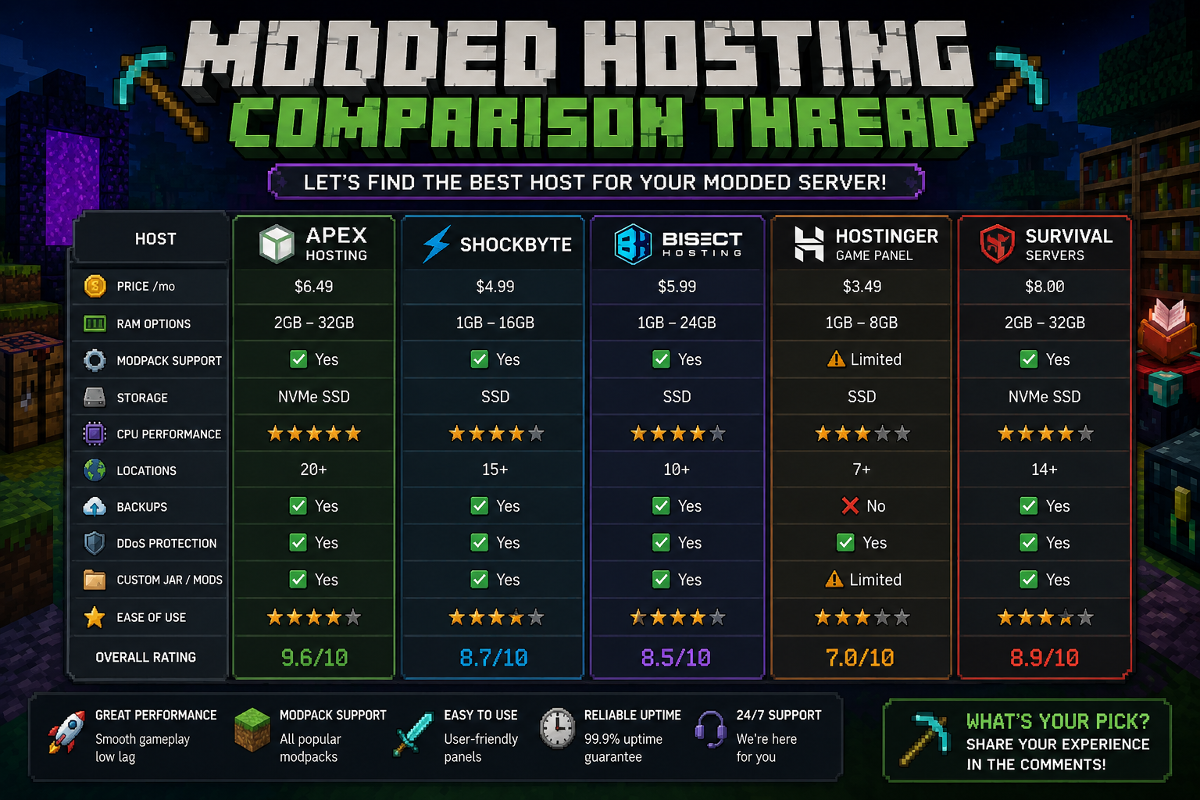
If your group jumps between Bedrock and heavy Java modpacks and you’re comparing hosting options for a season, many communities write a modded hosting comparison thread to pick something stable. Different problem, but worth knowing when your crew grows.
Quick Tips For Better‑Looking Skins
Add light and dark pixels to fake folds in clothes. Shade under the arms and around the belt line. Keep colors simple. Two or three tones per area beat a rainbow mess. Test in bright sun and in caves. Some colors die in low light. Keep the hat layer nice and thin. Thick designs tend to stick out through armor helmets, and yeah, it looks messy fast.
Troubleshooting Checklist
- Is the file PNG? If not, convert it.
- Does the preview show broken limbs? Swap arm style.
- Does the server replace skins? It might be forcing defaults. Try another realm or ask staff.
- Is your version old? Update the game; Dressing Room bugs happen and then get fixed.
- Still stuck? Try another known‑good skin PNG to rule out a bad file.
Final Notes
You now know how to get custom skins on Minecraft Bedrock the easy way, what minecraft bedrock custom skins really are, and where the “4D” talk fits. PC and mobile let you import PNGs fast. Consoles lean on packs and the Character Creator. A quick test world can save a lot of regret later. Keep everything straightforward, make sure nothing breaks, and then take it into a lobby.